WordPress, upload and crop aspect ratio images with ACF
Introduction
We’ve all had users who upload images of a size viewable from space down to teeny tiny thumbnails. Both of which are totally inappropriate for the view-space required.
Would it not be better to give them the tools they need to crop and resize (with optional aspect ratio) to the specific correct sizes we’ve set?
ACF: Image Aspect Ratio Crop Plugin

To be fair not everyone knows how to use image editors and even if they did most wouldn’t allow for the time required to do a ‘proper job.’ Thankfully there is a WordPress ACF Extension Plugin that can help us to help our users do a better job.
What does it do?
[ It adds ] a field for Advanced Custom Fields that forces the user to crop their image to specific aspect ratio or pixel size after uploading. Using an aspect ratio is especially useful in responsive image use cases.
ACF Image Aspect Ratio Crop plugin page documentation
What to look for gallery


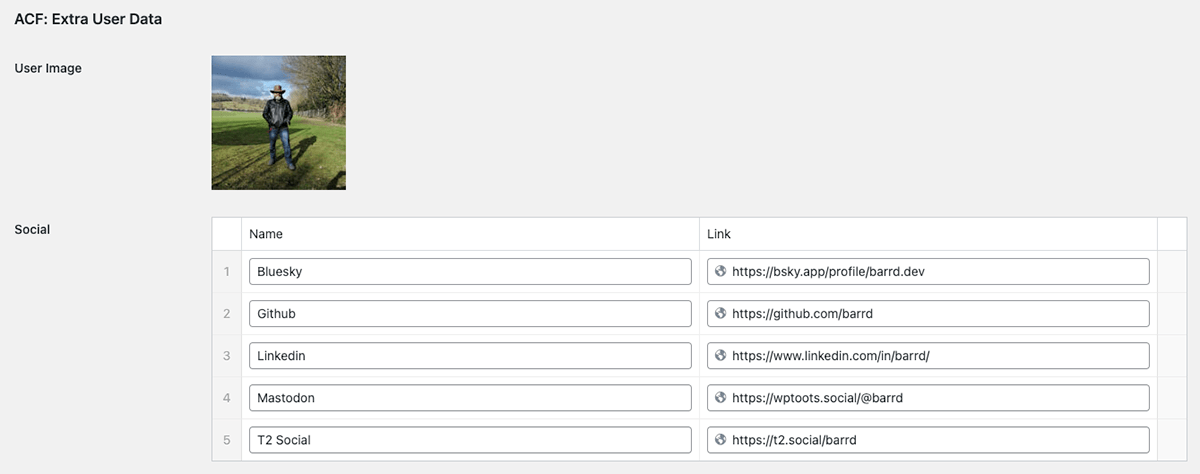
Image Index
The plugin fields
The General Admin Tab in the Edit Field Group (See Image 01) is made up of the following fields;
• Field Type
Standard ACF dropdown where you would select ‘Image Aspect Ratio Crop‘ as the type.
• Fields Label & Name
Standard ACF fields for what you would like to label this variable and by what name it will be called in as.
• Crop Type
Dropdown list with 3 options to choose from (See Image 02) information copied from plugins download page.
- Aspect Ratio
Read more about aspect ratio
Use this option if you want the image to be of specific aspect ratio like 16:9 but the pixel size is not important. After selecting an image, user can select an area from the image that matches this aspect ratio. When crop button is pressed, the area is cropped from the original image. - Pixel Size
Read more about pixel size
Use this option if you need a specific pixel size image like 640×480. User will not be able to select an image smaller than the defined pixel size. After selecting an image, user can select an area from the image they want, which can be larger than the pixel size but may not be smaller. The aspect ratio of the selection is locked according to the pixel size. When crop button is pressed, the area is cropped from the original image. After the crop is complete, the image will be automatically scaled down to the pixel size. This means the final image will always be the specified size. - Free Crop
Crop can be done freely, there are no aspect ratio limitations.
• Width & Height
Set the values you need for the largest version (Media: Desktop), you can create custom variations with add_image_size() if required in functions.php (or similar.)
• Return Value
Standard ACF fields for how you would like the details retuned.
• Preview Size
Dropdown listing all the available sizes including custom variants that you have added (See Image 03.)
• Library
Choose whether to be able to select from all current uploaded media or just those uploaded to the Page or Post.
• Minimum & Maximum Values
This is very handy and one of the main benefits of using this tool. You can set Min & Max values for;
- Width (in pixels)
- Height (in pixels)
- File Size (in MB)
Straight away images that are invalid (not meeting one or more of the above values) will be declined and force the user to find a better version (bigger, smaller in terms of both image dimensions and file size.)
• Allowed File Types
Very useful to ensure if needed that a particular type or types are used in a given situation. E.g. small dimensions size wise but needs to be high quality, so you might select to only allow .png or .webp. Leaving this field blank (default) allows all file types.
The Crop Functionality
The cream of the crop, the newly uploaded image that meets all the required criteria from Min, Max & Allowed File Types can be cropped to get the exact part of the image needed.

You can see a very basic example of the layout (See Image 04) above that also has a standard ACF Repeater Type containing Social Media links.
Final thoughts
Johannes Siipola the plugin’s author has fixed some issues recently when using PHP 8.1 so it’s now back to being one of my favourite plugins. There has also been hints that new functionality will be added in the 7.0+ branch, I’m looking forward to seeing how this all evolves.
Hopefully you’ll find it useful too as it’s saved me endless hours of sorting out inappropriate sized images being uploaded by users of mixed abilities when it comes to image manipulation.
// End of Article
Article Information
Further Reading
- ACF Image Aspect Ratio Crop Plugin (wordpress.org)
- Johannes Siipola Homepage (siipo.la)
- WordPress add_image_size() function (developer.wordpress.org)
About Dave A.K.A. 'barrd'