Check your SpinupWP Dashboard for Non-Security Server Software Updates
Introduction
I was playing around with my personal SpinupWP setup and happened to click on the Dashboard link, it’s not something I often do as generally leave it on the Sites page. I happened to notice a ‘Non-Security Server Software Updates‘ panel under Warnings.
Turns out you are asked to install non-security updates manually. For further information you can read their documentation.

What to look for gallery
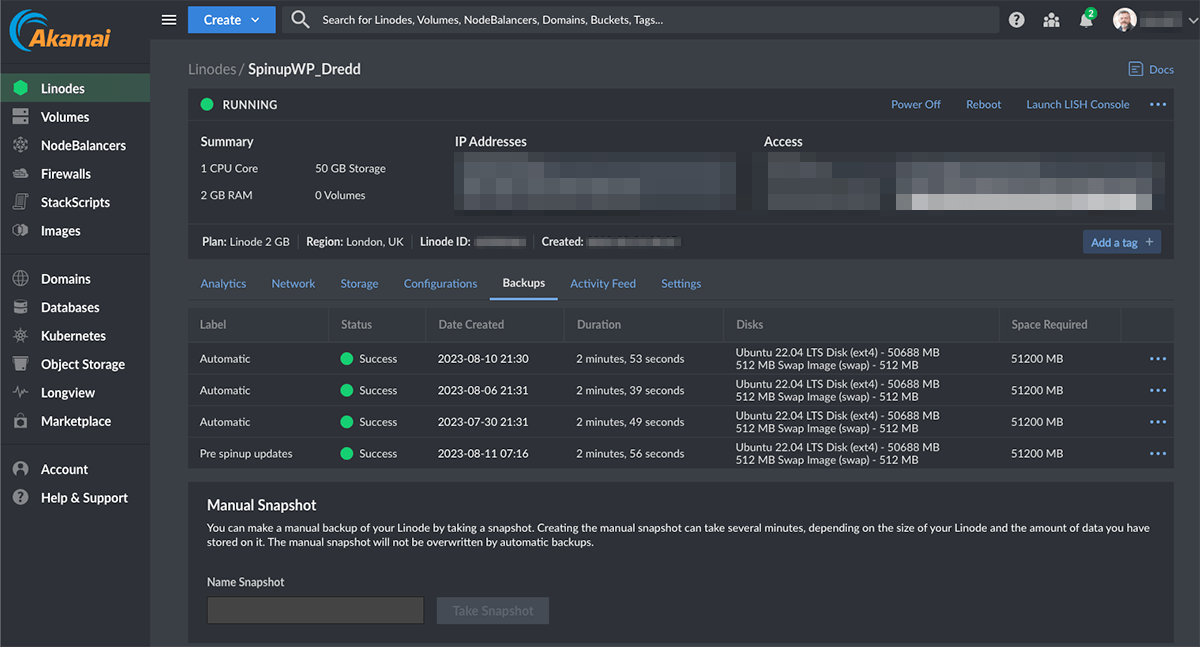
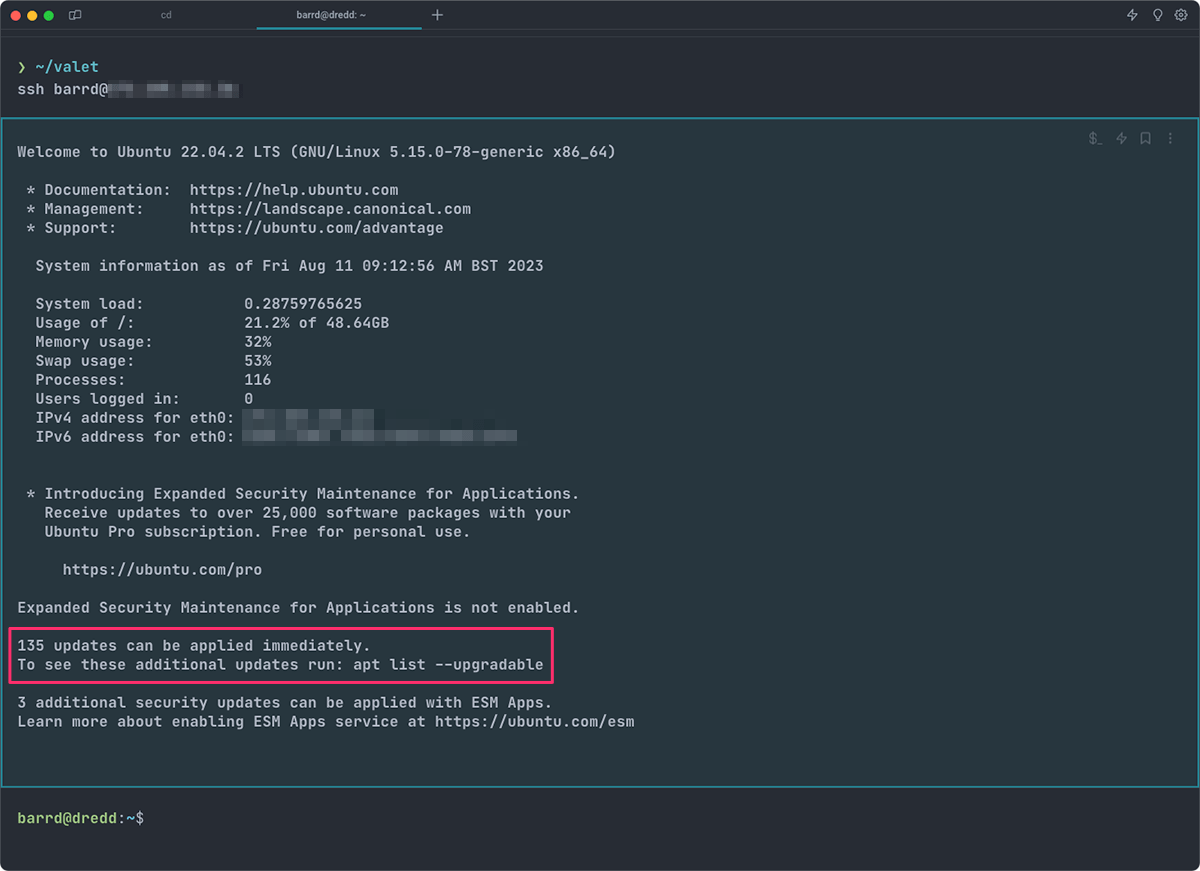
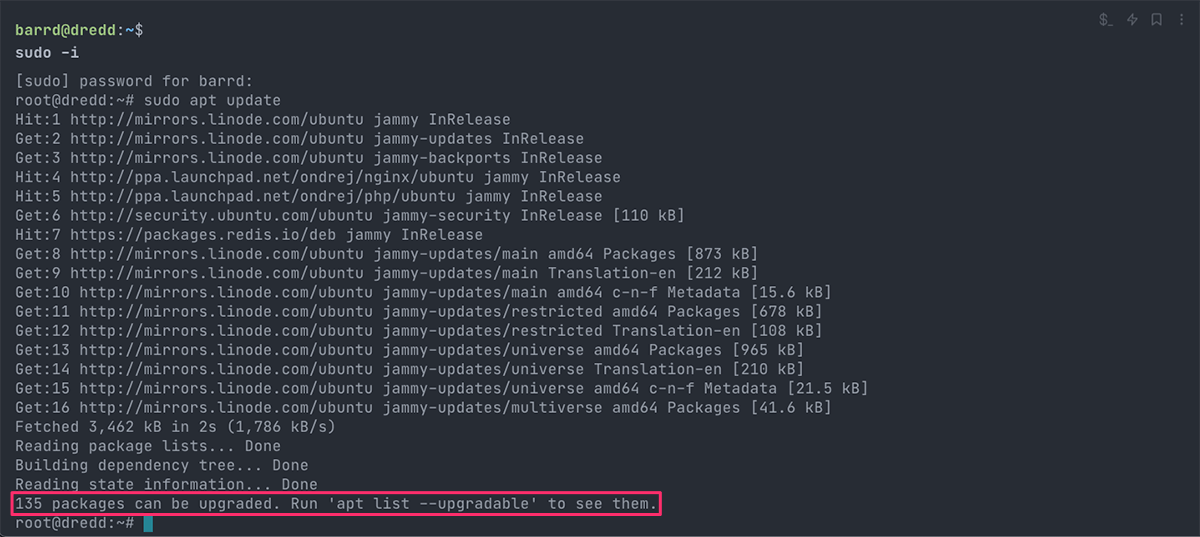
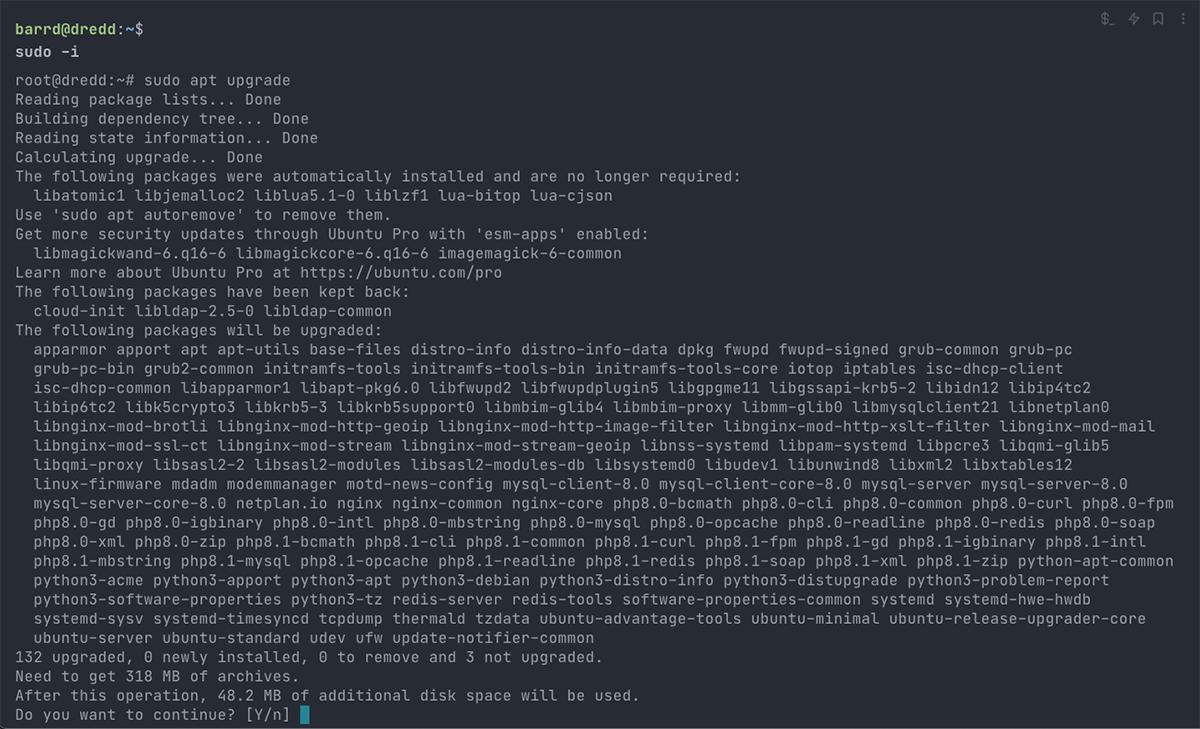
Image Index
Run through of what to expect
Step 01 – Backup at server level
The example here is using Linode as the VPS service (See Image 01). Make sure you make a full server backup using a Manual Snapshot if you have that capability. Having multiple backups is a good strategy when doing server level updates.
Step 02 – Login to server using your sudo user account name
Fire up your Terminal app of choice and SSH into your server using your Sudo Account details. Once logged in you will see the standard Ubuntu System Details and a message near the bottom stating how many updates are required (See Image 02.)
Step 03 – Login to the sudo account
The next step is to login to the actual Sudo User Account itself. On the CLI type;
sudo -iThen when prompted type in the password. You should see a change in your Terminals prompt from your login name to root@.

Step 04 – Run the update command
On the CLI type;
sudo apt updateThis will display the package lists and from where they will be fetched. Near the end will be the number of updates that will be applied in the next step (See Image 03.)
Step 05 – Run the upgrade command
On the CLI type;
sudo apt upgradeThis will display all the package names that will be upgraded along with tips as to other actions you may take if you wish to (See Image 04.) You will be prompted at the end with;
Do you want to continue? [Y/n]
Type Y on your keyboard to proceed.
Step 06 – Follow instructions and then test, test, test
There are a multitude of scenarios that may happen during the upgrade process. Follow inline instructions, select ‘keep your currently-installed version‘ if a pop up window appears with multiple options and if in doubt do research or in extremis reach out to SpinupWP support.
Once the process is complete test each and every site your have running on that SpinupWP instance, you cannot be too careful.
Final thoughts
You may be wondering at this point why SpinupWP don’t automate these types of updates as they do with security ones. The answer lies in how much attention software authors give to non security related patches. From the documentation;
… for non-security updates however, developers are far less careful. They assume that you will be paying attention when you apply these updates, test your sites, and be around to handle any issues that arise. You can probably imagine lots of ways that an update to PHP could cause problems with your sites. We’ve experienced this in the past in fact.
SpinupWP Documentation
Makes sense if you think about it and at the very very worst you’ll be alerted immediately that there is a problem. Then you can make an informed decision based on how bad you believe it is (restore from backup?)
Happy updating!
// End of Article
Article Information
Further Reading
- Linode Homepage (linode.com)
- SpinupWP Homepage (spinupwp.com)
- SpinupWP Updates Documentation (spinupwp.com)
- SpinupWP Users Documentation (spinupwp.com)
About Dave A.K.A. 'barrd'