WordPress, renaming an established custom ACF block
Introduction
During the process of updating ACF‘s blocks API from version 2 to 3 on this site I took the opportunity to rename a few of them. The old names seemed a “good idea at the time” but just ended up annoying me. This article is mainly for my records, but it may help others.
TL;DR shortlist
- Backups! Always ensure you’ve done so, on every environment.
- Rename block directory &
PHPfile, then updateblock.json. - Edit
ACFField Group. - Run
MySQLcommands to update the database. - Optional – Allowed Block Types
If using allowed_block_types_all hook, update its reference in the list. - Optional –
SASS/CSS
If using externalSASSfor styling, update.scssfile names (for consistency.)
Do a search for any comments etc. and update as necessary. You’ll thank yourself later. 😉
Step 01. The block directory
You’ll have different file structures to the examples below, but you’ll get the general idea.
Renaming the Directory & PHP file
Before;
…/themes/my-theme/blocks/
└── my-old-silly-name/
    ├── block.json
    └── my-old-silly-name.php
After;
…/themes/my-theme/blocks/
└── my-new-name/
    ├── block.json
    └── my-new-name.php
If you include styles directly as part of your block see the Update Styles section below.
Update the block.json.
Before;
{
  "apiVersion": 3,
  "name": "acf/my-old-silly-name",
  "title": "My Old Silly Name",
  "description": "My Old Silly Name Block.",
  …
  "acf": {
    "renderTemplate": "my-old-silly-name.php",
    …
  }
}
After;
{
  "apiVersion": 3,
  "name": "acf/my-new-name",
  "title": "My New Name",
  "description": "My New Name Block.",
  …
  "acf": {
    "renderTemplate": "my-new-name.php",
    …
  }
}
Step 02. Edit ACF Field Group
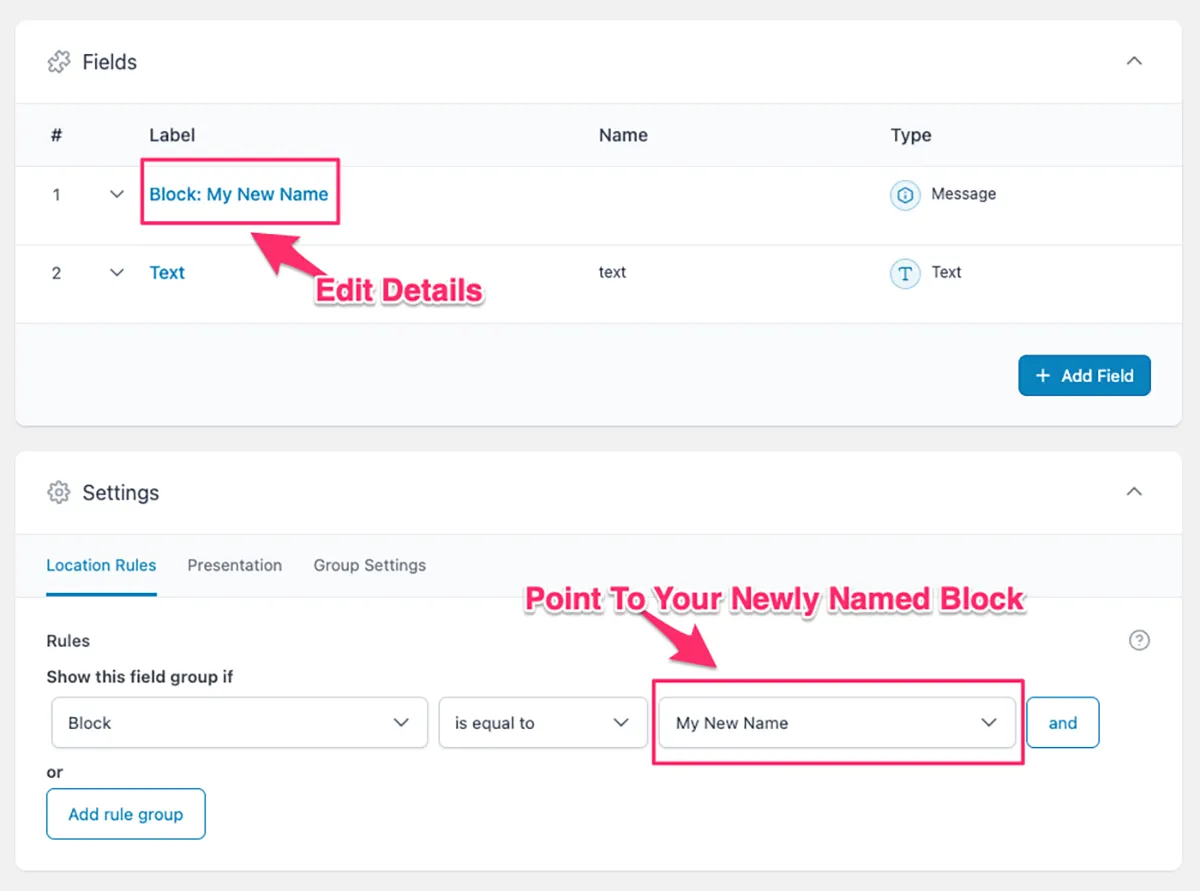
- Update any
labels etc. underFields. - Select the newly named block from the dropdown list under
Location Rules.
Step 03. Update the database
This part is a bit trickier. First you need to establish what syntax needs to be updated.
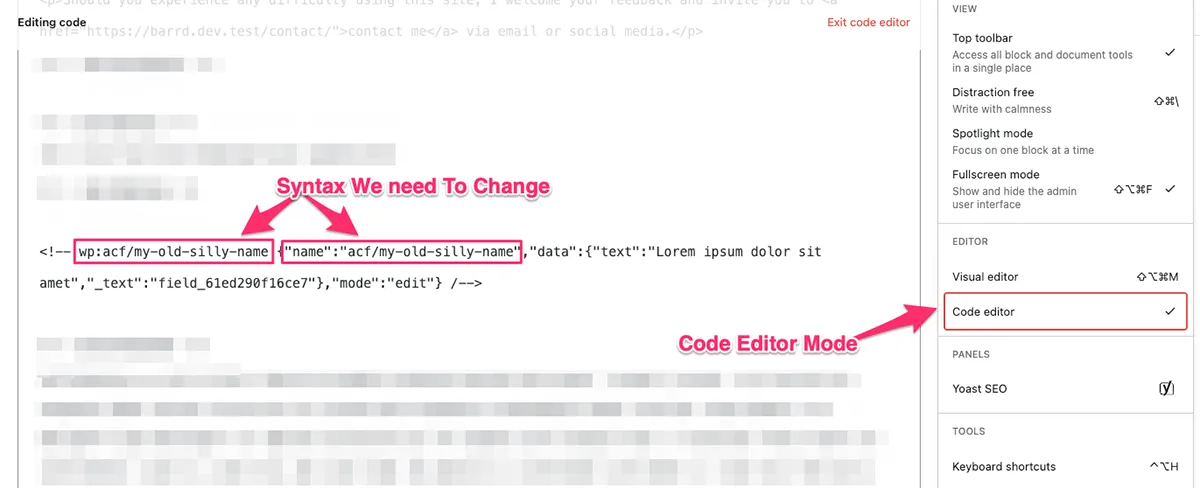
Find a post that contains the block you want to rename. Switch to Code editor mode (see image above) and find a reference to your block. An example;
# Single line version
<!-- wp:acf/my-old-silly-name {"name":"acf/my-old-silly-name","data":{"text":"Lorem ipsum dolor sit amet","_text":"field_61ed290f16ce7"},"mode":"edit"} /-->

# Multi-line version (for clarity)
<!--
  wp:acf/my-old-silly-name
    {
      "name":"acf/my-old-silly-name",
      "data":
        {
          "text":"Lorem ipsum dolor sit amet",
          "_text":"field_61ed290f16ce7"
        },
      "mode":"edit"
    }
  /
-->
The two points of interest that we need to search for and replace;
Point One;
wp:acf/my-old-silly-namePoint Two;
"name":"acf/my-old-silly-name"They look similar and share some of the same syntax but we’ll change them separately.
WP-CLI to the rescue
Following are the WP-CLI commands to run in sequence;
# Command one
wp search-replace 'wp:acf/my-old-silly-name' 'wp:acf/my-new-name' wp_posts --include-columns=post_content

# Command two
wp search-replace '"name":"acf/my-old-silly-name"' '"name":"acf/my-new-name"' wp_posts --include-columns=post_content

# Command three
wp cache flush- Search for
wp:acf/my-old-silly-nameand replace withwp:acf/my-new-name. - Search for
"name":"acf/my-old-silly-name"and replace with"name":"acf/my-new-name". - Flush the cache.
I run the commands separately to ensure parity, long story short I found some edge cases where the numbers didn’t add up. I’d recommend using the dry run (--dry-run) option first to check for anomalies.
Step 04. Optional extras…
Depending on your setup you may need to ensure that other features are updated, in my case that involved…
Update Allowed Block Types
I use the allowed_block_types_all WordPress hook which covers Core, ACF & any Third Party blocks used in my theme. If you don’t use this method, you can ignore this.
Update SASS/CSS file names (.scss/.css)
For the sake of consistency I updated the external SASS files associated with the newly named blocks e.g. ../blocks/my-new-name/ is now linked with ../src/sass/blocks/_my-new-name.scss.
If you include styles via block.json e.g.
{
  "name": "acf/my-old-silly-name",
  "style": [ "file:./my-old-silly-name.css" ]
  …
}
… just update the .css file name instead.
{
  "name": "acf/my-new-name",
  "style": [ "file:./my-new-name.css" ]
  …
}
Final thoughts
I use custom ACF blocks and the WordPress editor in a very opinionated way, especially around styling. If you ignore that part, all the rest is actually applicable to almost any ACF blocks API v3 setup.
Of course the best thing to do is name them correctly in the first place. 🙃
// End of Article
Article Information
Further Reading
- ACF Blocks V3 Docs (advancedcustomfields.com)
- WordPress allowed_block_types_all Hook Docs (developer.wordpress.org)
- WP-CLI Homepage (wp-cli.org)
- WP search-replace Command (developer.wordpress.org)
About Dave A.K.A. 'barrd'