Adding vignette to images in Adobe Photoshop
Introduction
This is a QuickNote article about how to add the vignette effect (amongst others) to images in Adobe’s Photoshop. I’m writing this now as a lookup piece for me the next time I attempt to do it and realise I’ve forgotten how, much like my last article. ;)
TLDR;
Filter>Convert for smart filtersFilter>Camera Raw Filter...
Before and after
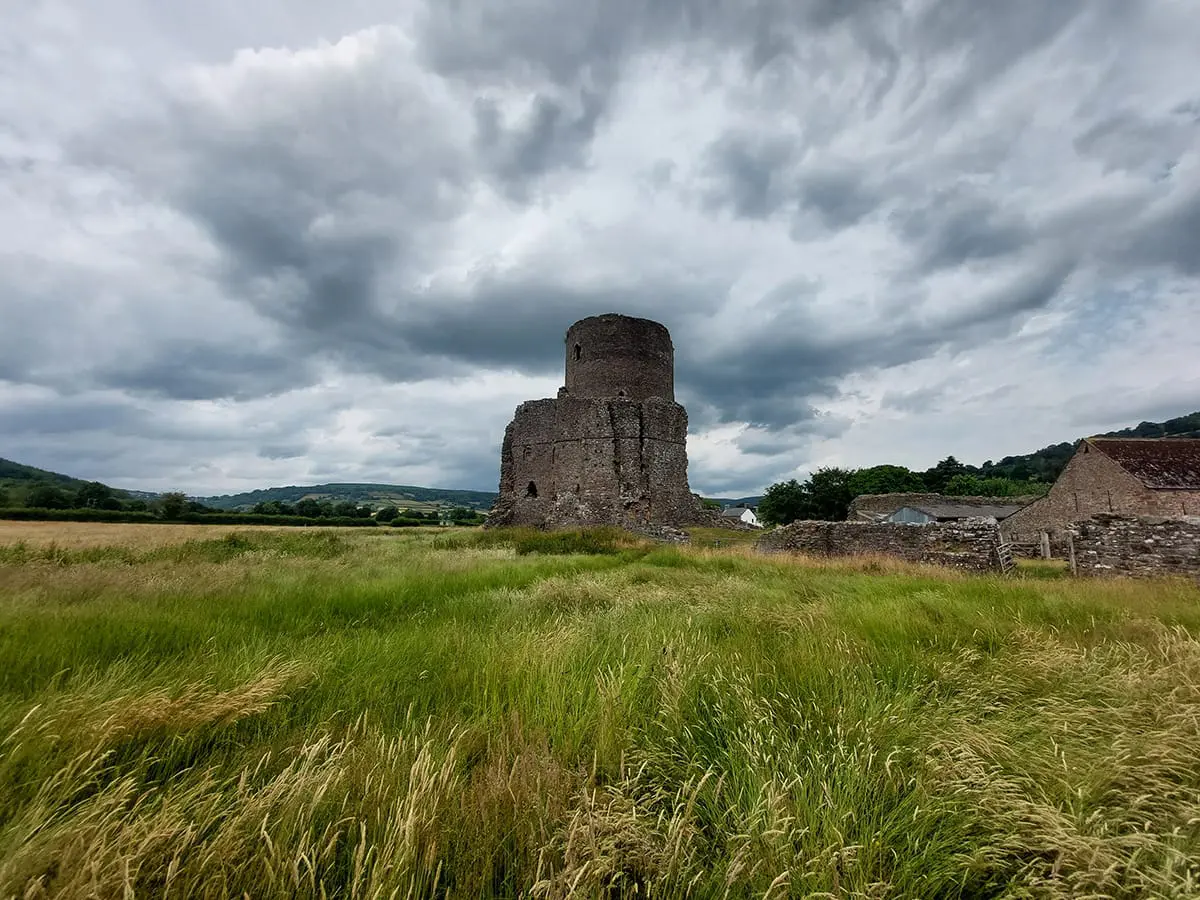
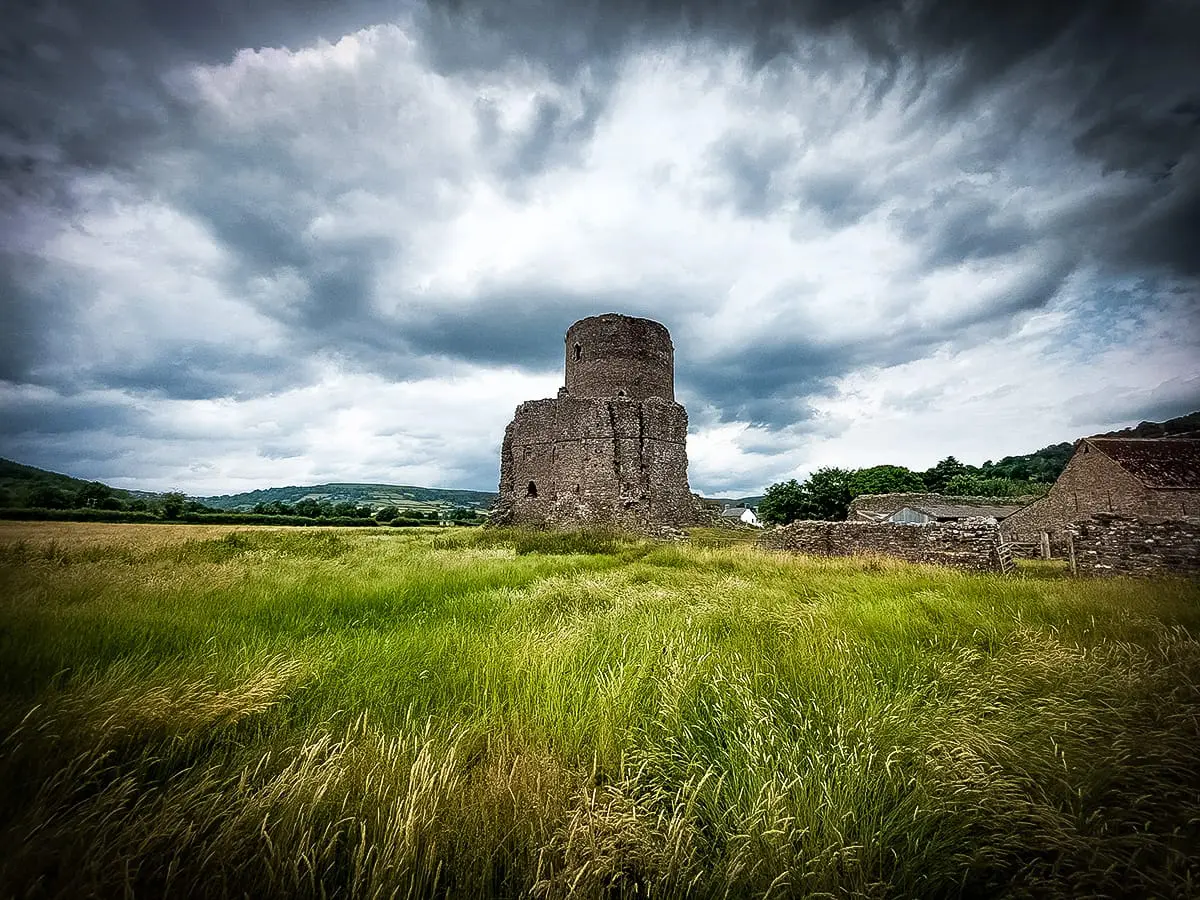
Image Index
The process
I won’t “attempt to teach granny to suck eggs” here (a phrase that has perplexed me for as long as I’ve known it) and I’ll skip the usual image preparations like resizing and setting levels.
Converting to smart filters
Once you’re ready to add extra effects go to the Filter (top level menu item) and select Convert for smart filters, all good but what does that mean?
When we convert a layer into a smart object, any changes we make are applied to the container itself, not to its contents. This keeps our changes both editable and non-destructive. And when we apply one of Photoshop’s filters to a smart object, the filter automatically becomes an editable, non-destructive smart filter.
photoshopessentials.com
We now have a container that can have our desired effects applied to without the inconvenience of starting from scratch if we muck anything up, we can simply remove the container and start the filter process again.
Camera Raw Filter
Continuing the process next we go back to the Filter (top level menu item) and this time select Camera Raw Filter... There is too much to cover in this guide as to what is available, however there are many tutorials available that go into great detail about the power of of this filter.
The image will open with a set of options on the right to add various effects.

Locate the pane Effects (highlighted in red above) and apply Vignette. That’s all, simples.
Final thoughts
Easy when you know how but it’s not exactly intuitive to get there hence why I’ve written this as a short reminder.
As a bit of background about the picture I used, my wife and I visited Tretower Castle in 2023 whilst we were poodling around Wales on a long weekend away. I always loved the shot mainly because the day in question had moody skies and I captured a wonderful moment with wind swept grass and foreboding clouds. Yup, it rained not long after but still a great day and a happy memento of the visit.
// End of Article
Article Information
Further Reading
- Adobe Photoshop Homepage (adobe.com)
- Camera Raw Filter: Ultimate Guide (digital-photography-school.com)
- Tretower Castle (wikipedia.org)
- Teaching grandmother to suck eggs (wikipedia.org)
About Dave A.K.A. 'barrd'