WordPress, entering the Fediverse using ActivityPub plugin
Introduction
I should point out from the get-go that I’m no expert in this field… at all! That said, I have a genuine interest in the Fediverse. On another project I installed and played with the ActivityPub plugin — what I’m writing about here are my early observations with trial and admittedly, many errors.
Getting ready and things to be aware of
There are two main pieces of functionality at play here, individual users accounts and a group account. For individual user accounts you need to be aware that when using Mastodon (as an example) elements will require a Gravatar account that matches the user name in order to fully configure what your Mastodon profile will look like.
As an example let’s say you have a WordPress User Account with the name ‘Joesph Bloggs’.

Then the Gravatar account will need to match the Username (as seen above) i.e. joesphbloggs. If they don’t, you have one chance to change on the Gravatar end as seen below.
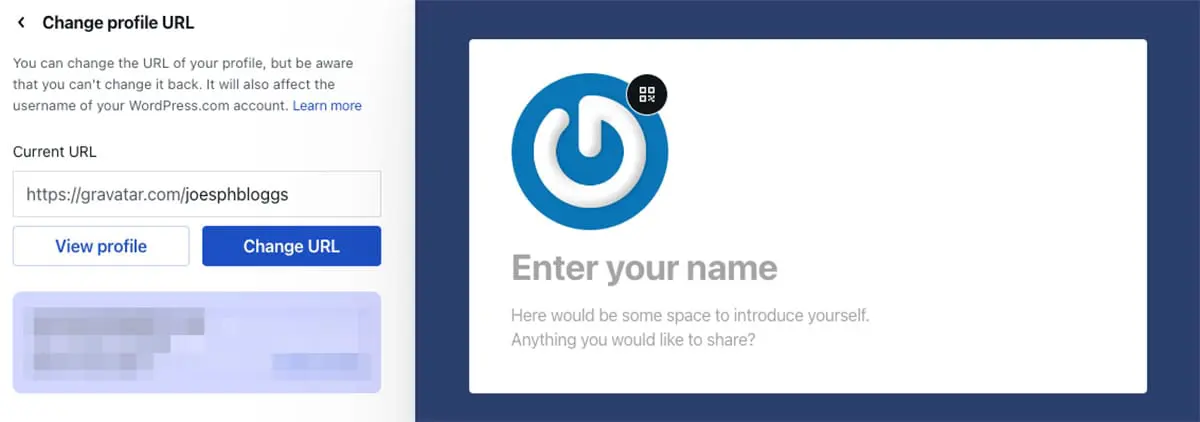
All of this may, or may not be possible and the main reason I’m telling you about this is because for an individuals account the one main Mastodon profile element you cannot edit via your WordPress user account settings is the avatar. This must be done at the Gravatar end.
If you do manage to match the accounts that’s great. If you don’t you’ll have to come up with another way of getting around it like creating a new Gravatar account to ensure you can register that username then add a new user account on the WordPress end and match that name, then swap accounts moving all your posts over. Or… accept that you’ll have that (default) sideways ‘G’ as your avatar. Whatever works for you.
One more thing to be aware of, choose your avatar carefully, Mastodon aggressively caches, meaning it’s hard to update if you change your mind.
Security considerations
I’d like to advise at this point that any account you’re considering opening up to the Fediverse not have administrative privileges. All accounts you’re planning on giving activitypub capabilities (more on this later) should be set to the lowest possible appropriate role level, e.g. Author. That will have sufficient privileges to add / edit Posts and Comments (more on comments later) a separate Administrator account should be set up for everything else.
What to look for gallery
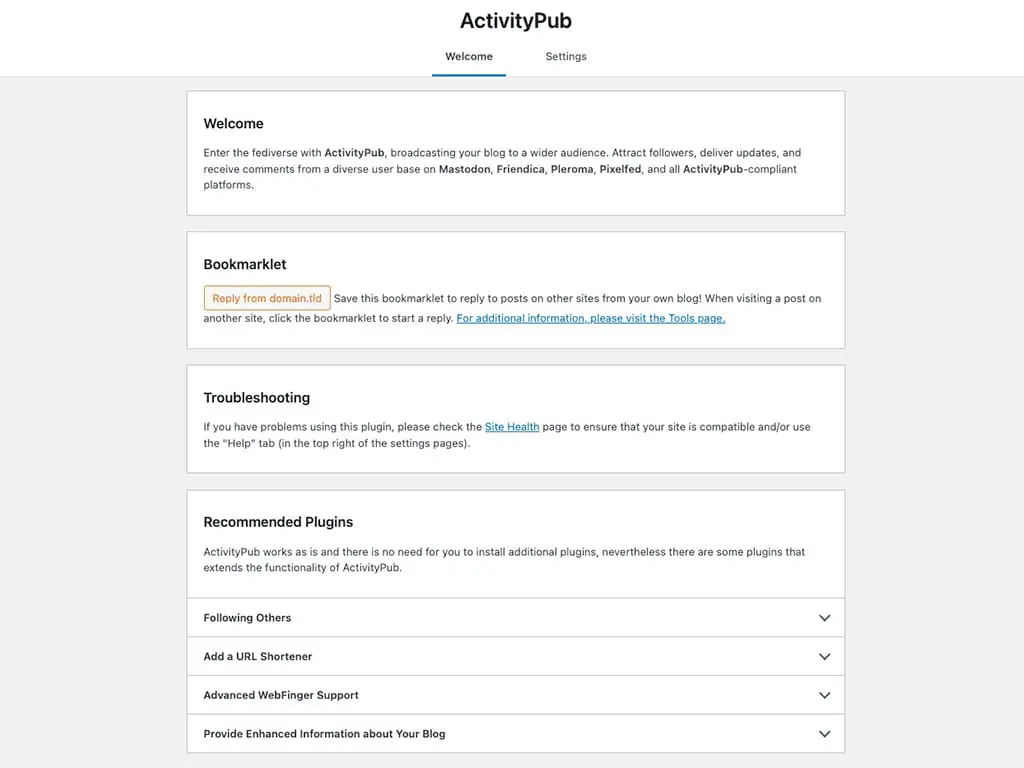
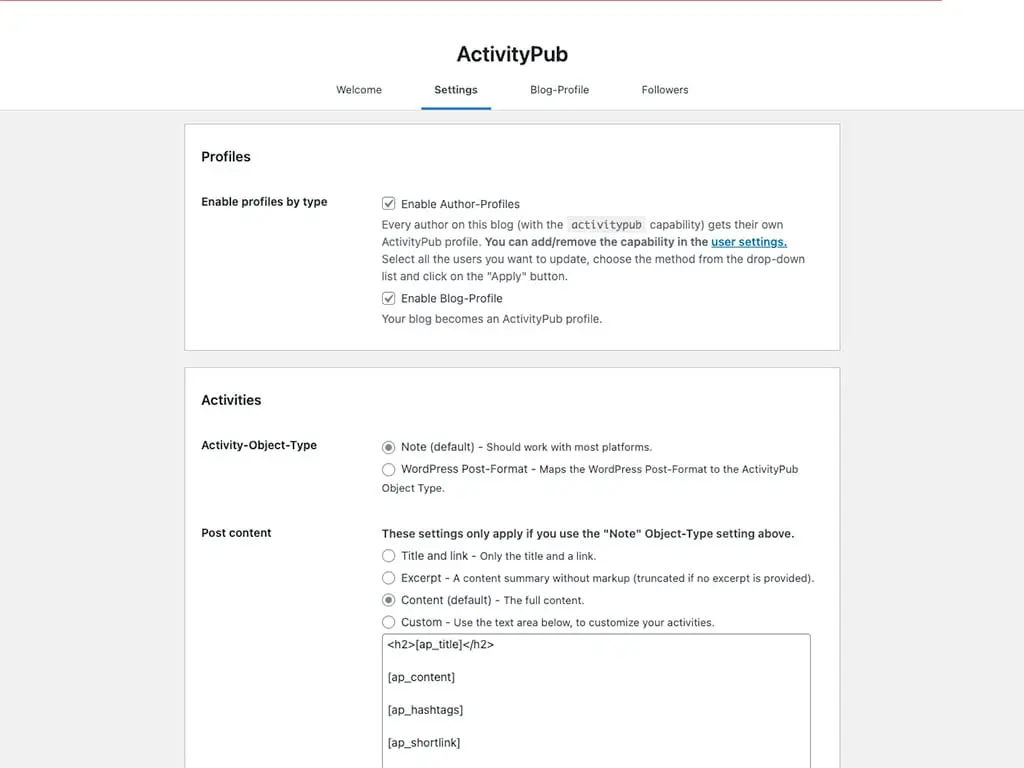
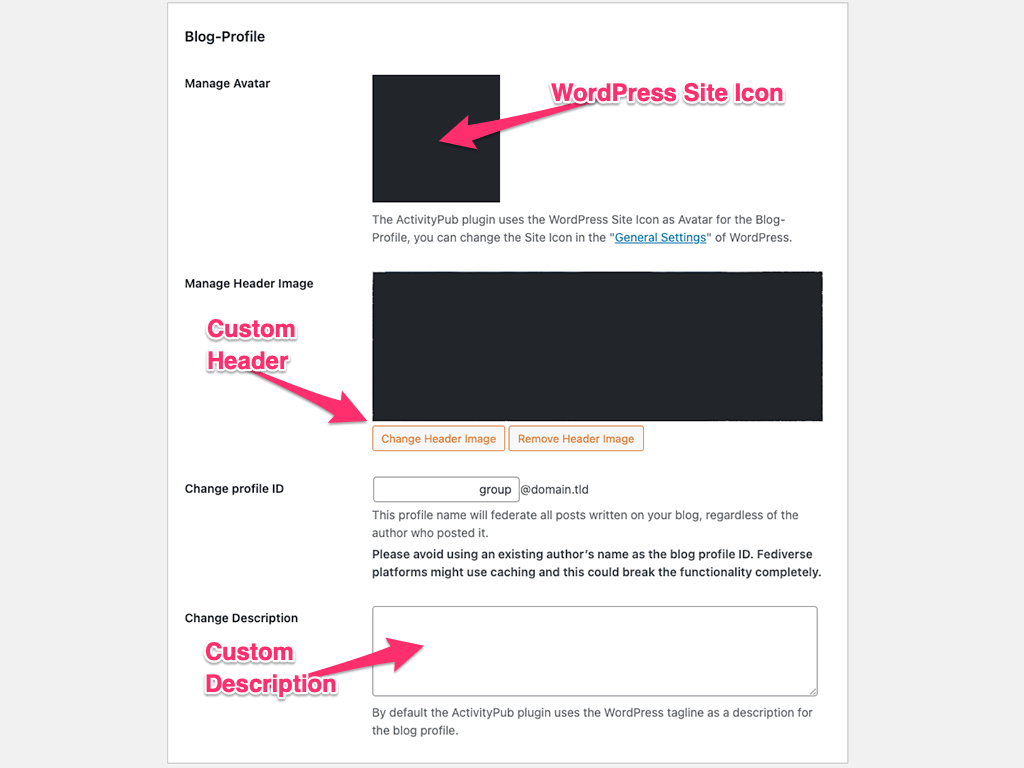
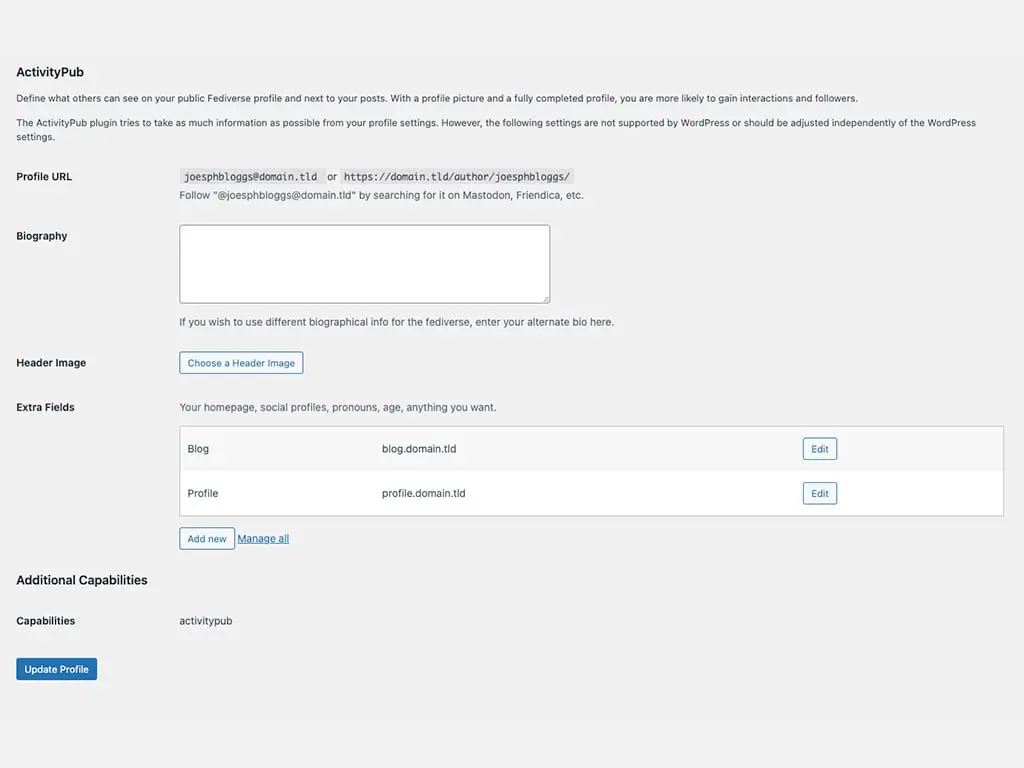
Image Index
Configuring the ActivityPub plugin
Once installed you can begin to configure how you would like your posts to be delivered out into the Fediverse.
01. Welcome Screen
After installation and following Settings > ActivityPub you’ll see the Welcome screen (See Image 1.) Click on the Settings link beneath ActivityPub, we’ll cover the settings next…
02. Settings Screen
Here is where you can choose the top level functionality (See Image 2.)
Enable profiles by type
- Enable Author-Profiles
This will activate individual user accounts when they are grantedactivitypubcapabilities thus allowing them to have their own Mastodon etc. instances publishing only their blog posts. - Enable Blog-Profile
This will generate a single consolidated Mastodon etc. instance where every user account withactivitypubcapabilities will have all their posts published.
Activities
Whether you’ve enabled Author-Profiles, Blog-Profile or both, this section will control them all.
- Activity-Object-Type
I’ve found that leaving it at the default (Note) works well, YMMV. - Post content
This applies to how the content will be formatted at the Mastodon end, you can play with this (when in testing mode) till you find the right fit for you or the group if you haveBlog-Profileenabled. - Media attachments
Choose how ever many media attachments (images etc.) that you would like to display. - Supported post types
Select whichPost Typesyou would like to have published. - Hashtags
Select to have WordPress tags associated with any post converted into Mastodon-esque hashtags. E.g. a tag of ‘Travels and adventures’ will be converted to#TravelsAndAdventuresthat will link back to your sites archive page and show a listing of all posts with that tag.
General
- OpenGraph
Adds an author meta tag<meta name="fediverse:creator" />read more about this feature. - Blocklist
In order to block servers etc. you can use the ‘Disallowed Comment Keys’ facility found underSettings>Discussion.
03. Blog Profile Screen
If you selected ‘Enable Blog-Profile’ under ‘Enable profiles by type’ you will have a link to this setting screen (See Image 3.) These are the general settings for your consolidated group account on Mastodon and include choices for;
- Manage Avatar
The profile page avatar which will use your WordPress Site Icon as found underSettings>General. - Manage Header Image
The header image, will be cropped at a 3:1 ratio — 1,500 x 500px works best. - Change profile ID
The account name — cannot be an existing users name, something likegrouporallwith the end result looking like@[email protected]. - Change Description
The profile description, by default it’s your WordPresstagline, change here to override.
04. WordPress User Profile: ActivityPub Section
First things first
In order for individuals to configure their Mastodon profile information (if you selected ‘Enable Author-Profiles’ under ‘Enable profiles by type’) you’ll need as an Administrator role to enable activitypub capabilities for every user that requires them.
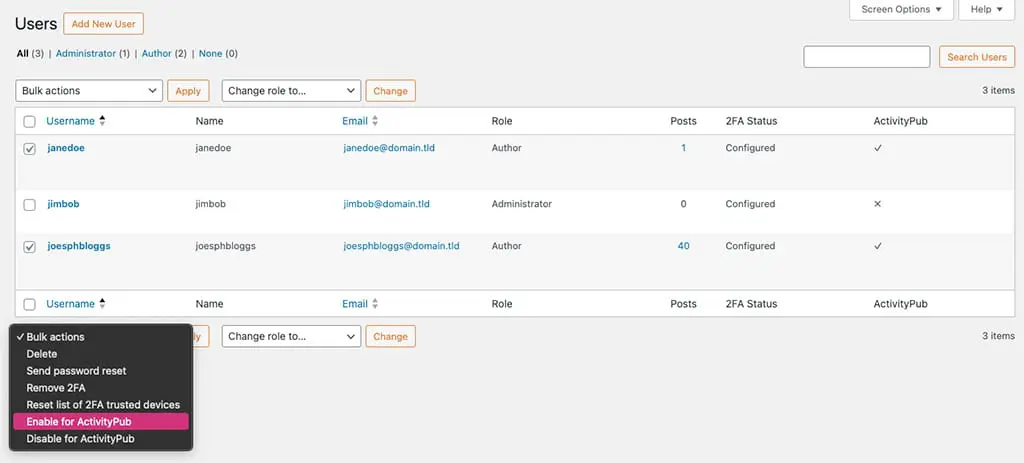
Click on Users menu item, select any user(s) that need the capabilities, click the Bulk Actions drop-down menu, select Enable for ActivityPub, then click the ‘Apply’ button.
Users can now configure settings for ActivityPub
When a user has had activitypub capabilities enabled they’ll find a new section in their User Profile (See Image 4) where they can configure the following;
- Biography
This if filled in will override what is set inBiographical Infounder theAbout Yourselfsection. Useful If you want to use different biographical info for the Fediverse. - Header Image
Top tip here: You’ll need to temporarily change the users role toAdministratorin order to successfully upload an image. It’s either a bug or a weird permissions issue, I’ve never gotten to the bottom of it. Give it a try and if it fails, you now know what to do.;) - Extra Fields
Add as many extra informational fields as you want, your homepage, social profiles, pronouns, age…
Choose what you add here carefully, as again, Mastodon aggressively caches meaning changes made here may take weeks to show up.
Comments & Followers
Without the need of additional plugins, Comments (others and your replies on Mastodon) and your Followers on Mastodon are baked into this plugins code and available to be seen / edited using the Author user role. I won’t go into details, it’s all simple enough and “just works” thanks to the brilliant work by the development team.
Other considerations
Caching
Yup, that old bugbear. If things don’t work — at all, partially or in a ‘weird manner’ it’s more than likely a caching issue. It probably goes without saying that if you’re serious about your blog and getting it on the Fediverse you’ll do yourself a huge favour by running this in a Local > Staging > Production style workflow. Staging will present issues in a safe environment that Local may miss out on.
Inputted data scanned for @ (at symbol)
Nothing to panic about but as you are typing text in and use a ‘@’ (at symbol) a contextual style menu will appear allowing that text to be converted to a Fediverse link of the type: @[email protected]. You need to do a thorough check of your whole site once you’ve activated this plugin to ensure nothing unintended has been altered. This is another excellent reason for the workflow outlined above.
Final thoughts
There’s a lot to digest, hopefully I’ve helped by outlining some of the rabbit-holes and issues I encountered and my way of fixing getting around them. It’s the tip of the iceberg and there’s lots more to explore and discover with additional functionality plugins. As I add, test, win some, lose some and generally scratch my head going forward I’ll add more posts letting you know how I’m doing.
// End of Article
Article Information
Further Reading
- ActivityPub Plugin (wordpress.org)
- Gravatar Homepage (gravatar.com)
- Highlighting journalism on Mastodon (joinmastodon.org)
About Dave A.K.A. 'barrd'